Prepare, don't commit: the rule for assistants that touch customer data
In short
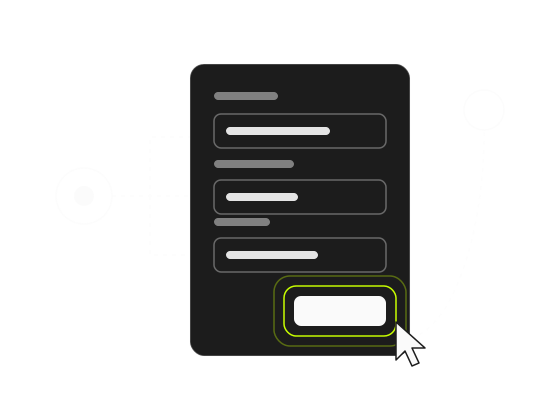
An assistant inside your app should prepare, not commit: it opens the right screen, fills the form where the customer can see it and points at the button. The customer presses what saves, sends or deletes, which keeps the assistant's mistakes cheap and visible.
An assistant that works inside your app should prepare, not commit: it opens the right screen, fills the form where the customer can see it and points at the button. The customer presses what saves, sends or deletes. That one click keeps the assistant’s mistakes cheap and visible, and it keeps responsibility for the account with the person who owns it.
The rule is easy to state and harder to apply, because not every change is a commit. This post explains why the rule matters and gives you a test for drawing the line in your own product.
The assistant will be wrong sometimes, so make being wrong cheap
A language model that picks an action and its arguments is right most of the time. “Most of the time” is a fine standard for an answer and a bad one for a change to someone’s account.
The mistakes are rarely dramatic. Say your app lets customers invite teammates and change their plan. The model reads “add Jon from marketing” and there are two people called Jon in the workspace. It reads “move us to the bigger plan” and picks the plan above the right one. It copies an email address with a typo from the customer’s own message.
If the assistant prepared the change, each of these mistakes sits in a form in front of the customer. They read “Jon Pérez”, see it’s the wrong Jon, and fix it before anything happens. If the assistant committed the change, the invite has already gone to the wrong inbox and the card has already been charged for the wrong plan. You find out when the customer writes in, which is the support work the assistant was supposed to remove.
Preparing turns an error that happened into an error the customer caught. Same model, same mistake, a very different week for you.
The rule comes from my day job as much as from aside. By day I work on the ecommerce integrations of a SaaS, where a sync bug doesn’t stay a bug: it ends up as an accounting problem for the customer. That teaches you to think twice about anything that can’t be undone, and it’s the habit I built into aside: the assistant prepares, the person confirms.
You are still responsible for what your assistant does
There is a second reason, and it is not technical. When an assistant inside your product does something, your customer sees your product doing it.
At least one tribunal already has. In Moffatt v. Air Canada, a British Columbia tribunal held the airline liable for wrong information its website chatbot gave a customer, and rejected the idea that the chatbot was somehow responsible for its own words. That case was about an answer. An action that changes an account raises the stakes, not lowers them.
Your customers are also not sure about AI yet. A 2025 global study by KPMG and the University of Melbourne, which surveyed more than 48,000 people in 47 countries, found that only 46% are willing to trust AI systems. An assistant that asks for one click before anything lands gives the other half a reason to try it: nothing happens to their account that they didn’t see and approve.
Is it enough to tell the model to ask before it saves?
No. The tempting shortcut is to give the model the power to save and tell it, in its instructions, to ask first. Don’t.
In July 2025, an AI coding agent deleted a production database during a code freeze, after its user had told it not to make changes without permission. That was a developer tool, not a customer-facing assistant, but the lesson carries over: an instruction is something a model weighs. It is not a guarantee.
The guarantee has to live in your code. If the function the assistant can call never presses the submit button, then no wording, no confused customer and no bad day for the model can make it submit. The OWASP Top 10 for LLM applications lists this risk as “Excessive Agency”, and one of its recommended mitigations is exactly this: require a human to approve high-impact actions before they are taken.
Which actions should an assistant never complete on its own?
An assistant should never complete an action that leaves the account, costs money or removes something: it prepares those, and the person presses. Not every change needs a confirm button, though. If you make the customer press “save” after every field the assistant fills, you’ve rebuilt the form with extra steps. The line is about consequences, not about whether data changes.
Ask four questions about each action:
- Does it leave the account? An email, an invitation, a message to a customer, a call to a webhook. Once it’s sent, you can’t take it back.
- Does it cost money? A plan change, an extra seat, a paid add-on.
- Does it remove something? Deleting a project, revoking access, cancelling a subscription.
- Can the person undo it on the same screen, right now? A toggle, a threshold, a notification setting, a display preference.
A “yes” to any of the first three means the assistant prepares and the person presses. A “yes” only to the fourth means the change can apply as it’s filled in. If all four are “no”, prepare it anyway: when in doubt, the person presses.
| Task | What the assistant does | Who presses |
|---|---|---|
| Invite a teammate | Opens the invite dialog, fills email and role, points at Send invite | The customer |
| Change the plan | Opens billing, selects the plan, points at Confirm | The customer |
| Delete a project | Opens the project’s settings, points at Delete | The customer |
| Connect a Slack webhook | Opens the integration, pastes the URL, points at Save | The customer |
| Set an alert threshold that saves on change | Fills the field; the setting is saved | Nobody: the fill is the change, and the panel says so |
| Rename a report draft | Fills the name in the editor | Nobody, if the editor saves drafts as you type |
The last two rows are configuration that already saves itself in your app. The customer does the same thing by hand with no confirm step, so the assistant doesn’t add one. It says what it changed, and the customer can change it back in the same place.
What “prepare” looks like in code
Here is the plan change as an action registered with aside. This is illustrative: say your billing page has a native plan selector and a confirm button. Every element carries a data-aside attribute so the handler never relies on classes or text.
const actions = [{
  name: 'change_plan',
  description: 'Open the billing page and select the plan the user asked for. '
    + 'It does not change the plan: the user reviews the new price and presses Confirm.',
  inputSchema: {
    type: 'object',
    properties: {
      plan: { type: 'string', enum: ['starter', 'team', 'business'], description: 'The plan to move to' },
    },
    required: ['plan'],
  },
  label: 'change my plan',
  run: async ({ plan }, aside) => {
    aside.navigate('/settings/billing');
    await aside.fill(await aside.waitFor('[data-aside="billing-plan"]'), plan);
    aside.highlight('[data-aside="billing-confirm"]', 12000);
    return { filled: { plan }, next: 'the user reviews the new price and presses Confirm' };
  },
}];

if (window.aside) window.aside.register(actions);
else window.addEventListener('aside:ready', () => window.aside.register(actions), { once: true });
Three things make it a “prepare” action:
- It never calls
aside.presson the confirm button.pressis for harmless steps, like opening a tab or a dialog. The button that changes the plan getshighlight, a ring around it for twelve seconds, and the customer presses it. - The description says what it does not do. The model reads it, so it tells the customer “review the price and press Confirm” instead of “done, your plan is changed”.
- The return value says what’s left.
nextis what the model reads after the action runs, so the conversation continues from the truth.
For the self-saving threshold, the description changes and nothing else does:
{
  name: 'set_alert_threshold',
  description: 'Set the error-rate threshold on the Alerts settings page. '
    + 'This setting saves itself on change: filling it is the change.',
  inputSchema: {
    type: 'object',
    properties: { percent: { type: 'number', description: 'Error rate, 1 to 50' } },
    required: ['percent'],
  },
  run: async ({ percent }, aside) => {
    if (percent < 1 || percent > 50) throw new Error('The threshold must be between 1 and 50 percent.');
    aside.navigate('/settings/alerts');
    await aside.fill(await aside.waitFor('[data-aside="alerts-threshold"]'), percent);
    return {
      filled: { percent },
      card: { type: 'action', title: 'Alert threshold', fields: [{ label: 'Error rate', value: `${percent}%` }], confirmed: true },
    };
  },
}
The card shows the customer what changed, and confirmed: true tells them it’s already saved. The throw is the boundary check: a value your form would reject never reaches the field, and the model gets a sentence it can repeat.
Isn’t the confirm click just friction?
No: it’s the step that carries the decision. It’s tempting to see the confirm step as the part you’d remove if you trusted the model more. Look at it from the customer’s side. Before, inviting a teammate meant finding the settings, finding the team page, finding the invite button, typing, choosing a role and sending. Now it means asking, watching the form fill in and pressing one button they can see.
That last press is the only step left, and it’s the one that carries the decision. It also gives the customer a moment of control, which matters more to someone who doesn’t fully trust AI than any speed-up.
What would be friction is asking them to confirm the steps that don’t matter: approving each field, typing “yes” in the chat, pressing save on a setting that already saves itself. The rule removes those too. One click, at the point of no return, and nowhere else.
Start with your riskiest task
If you’re deciding which actions to build first, list the tasks your customers ask you to do by hand and run each one through the four questions. The tasks that send, charge or delete are where the rule earns its keep: the assistant does everything up to the button, and you stop doing it on a call.
For the full setup (which functions to expose, how to mark your controls and what never to automate) read How to let an assistant act inside your web app without handing it the keys. To turn one of your help articles into an action step by step, see From help article to action.